


Creality Cloud - 3D Printing
4.51.96K Reviews
App Specs
- Version
- 7.3.19
- Updated On
- License
- Free
- Downloads
- 5,000,000+
- Developer
- Creality Cloud
- Categories
- Tools
- Platform
- Android
Screenshots
 Analysis by AppCompare
I’d approach Creality Cloud as a companion for the practical steps around a print, rather than a magic button that guarantees a perfect result. The useful promise is having model discovery, preparation, viewing, and printer-related tools together on a phone. That can make the first project feel less intimidating, especially if you’re still learning how a digital model becomes a physical object.
What to expect before you begin
Creality Cloud - 3D Printing is a free tools app from Creality Cloud, with optional in-app purchases ranging from $0.99 to $399.99 per item. It has a 4.7 average from around 32,000 ratings, and more than 5 million installs. It is rated for Everyone, first released on March 27, 2020, and version 7.1.8 supports Android 6.0 and later. Those figures suggest a well-used app, but they don’t tell you whether it fits your particular printer or workflow, so I’d treat compatibility and setup as the first things to check.
The app is most appealing if you want to explore models, prepare a file, and keep printer tasks close at hand without moving between several tools for every step. It is less compelling if you already have a desktop workflow you trust and only need a precise slicer with familiar, carefully tuned profiles. A phone is convenient for browsing and checking progress; it is not automatically the best place to inspect every technical setting or diagnose a difficult print.
A calmer first setup
When you first open it, I’d resist the urge to tap every feature at once. Start by getting comfortable with the main areas and deciding what you want to accomplish: find a model, view a file, prepare something to print, or connect with a printer. If your aim is remote control or monitoring, make that a separate setup task rather than assuming the app will discover and connect to your machine without any configuration.
It helps to have a specific, uncomplicated first project in mind. Pick a model whose shape and purpose are easy to understand, then look through its preview before committing to a print. This gives you a useful test of the whole path: finding a design, checking what it looks like, and seeing whether the preparation options make sense to you. If your first choice is a complex part with tight tolerances, a failed result may be hard to diagnose because there are too many possible causes.
Your first useful win
For a beginner, I’d count a meaningful first success as more than pressing a print button. Find a simple design, inspect it in the viewer, and take a moment to consider whether it suits the intended use. A decorative object is a forgiving trial; a replacement part that must fit another object is not. The viewer can help you understand the model before printing, but it cannot tell you that a part will fit your real-world hardware unless you already know the dimensions and requirements.
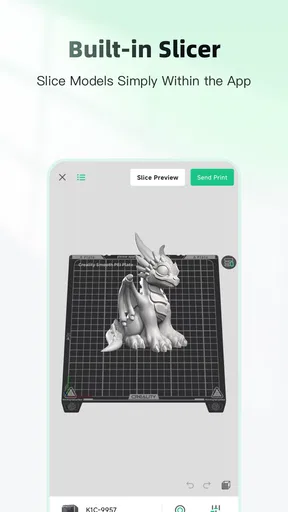
When you use the slicer, treat the preview as a decision point, not a formality. Look for whether the object appears as expected and whether the prepared result seems plausible for your printer and material. If you are unsure about a setting, avoid changing several values at once. A small, controlled adjustment makes it easier to learn what affected the outcome. This is a practical habit that matters more than trying to optimize every option on a first attempt.
Worth Reading Before You Choose

EA SPORTS FC Mobile 26 Is a Bigger Football Game, but It Takes Time

Flipboard Shows What News Apps Must Do Beyond the Feed

Switching to Android Auto Means Rethinking Your Driving Routine

Google Calendar Makes a Crowded Week Easier to Manage

Ludo King Makes the Most of the Minutes Between Plans

Baby Panda World Brings Quick Play to Modern Phones, but Its Game Library Feels Busy
A realistic use is spotting a need around the house, browsing for a small organizer or holder, and checking the design while you have a spare moment. Later, you can return to the model and decide whether it is worth preparing for a print. That kind of short, phone-friendly step is where the app feels most useful: it helps turn idle browsing into a project without requiring you to sit down at a computer immediately.
Where confusion can creep in
The all-in-one approach is convenient, but it can blur the line between browsing, designing, slicing, and controlling a printer. Those are different tasks, and success in one does not guarantee success in the next. A model that looks appealing in a library still needs to suit your intended use; a clean preview does not guarantee a strong print; and remote access is only useful after the printer connection is working.
I’d also keep expectations measured around phone-based controls. A compact screen is excellent for browsing and quick checks, but it can make detailed adjustments less comfortable than using a computer. If you are troubleshooting a failed print, need careful control over a complex model, or depend on a particular slicer profile, a desktop tool may be the better place to do the serious work. Use the app for convenience, and switch tools when precision or familiarity matters more.
How it fits beside other 3D-printing tools
Compared with using separate apps or desktop programs for model discovery, slicing, and printer checks, Creality Cloud’s main advantage is having several parts of the process close together. That reduces the friction of moving from inspiration to preparation. The trade-off is that an integrated toolkit may not feel as focused as a specialist tool for each job. I would use it as a practical starting point and companion, not assume it must replace every tool I already rely on.
It suits newcomers who want a guided way to explore 3D printing, people who like browsing designs away from their printer, and owners who value checking printer activity from a phone. It is a weaker choice for someone who wants only a minimalist model viewer, has no interest in the community or library, or prefers doing every preparation step on a larger screen. If you are choosing an app primarily for advanced, repeatable slicing, compare the available controls with the desktop workflow you already know before moving an established project over.
Getting Started with Creality Cloud
First things first, downloading and setting up the app is a breeze. Available on both Android and iOS, you can easily find it in the app store and get it up and running in no time. Once you’re in, the app welcomes you with a clean and intuitive interface. The Creality Cloud app really shines in its user-friendly design, making it accessible even for the greenest of beginners.
Upon opening the app, you’re greeted with a dashboard that provides quick access to a variety of features. From slicing models to monitoring your printer remotely, everything is just a tap away. I was pleasantly surprised by how seamless the navigation is, allowing me to dive right into exploring without any hiccups.
Features That Impress
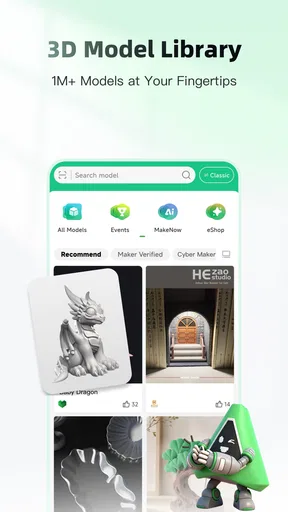
One of the standout features of the Creality Cloud app is its expansive library of 3D models. It’s like having a digital workshop at your fingertips. You can browse through a plethora of designs, ranging from simple trinkets to complex mechanical parts. The app also allows you to upload your own designs, which is fantastic for those who love to tinker and create unique projects.
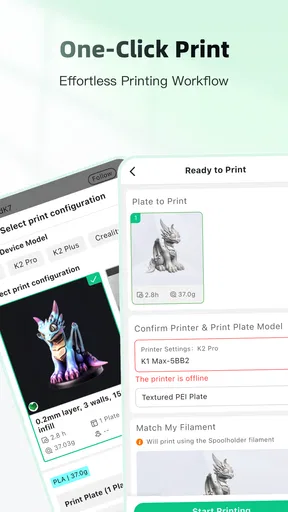
Another noteworthy feature is the slicing tool integrated directly into the app. This tool allows you to prepare your 3D models for printing without needing a separate software. Simply upload your model, adjust the settings, and let the app handle the rest. The slicing process is impressively fast, and the app provides detailed previews to ensure everything is just right before you hit print.
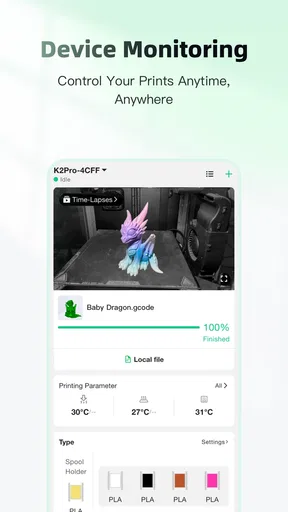
For those who love to keep an eye on their projects, the remote monitoring feature is a game changer. You can connect your Creality printer to the app and monitor the printing process from anywhere. This feature gives you peace of mind, knowing you can check on your prints without being tethered to your printer.
Connecting with the Community
What really sets the Creality Cloud app apart is its vibrant community. The app fosters a space where users can share their creations, seek advice, and collaborate on projects. It’s like having a mini social network dedicated solely to 3D printing. I found the community section to be incredibly inspiring, with users constantly sharing innovative ideas and tips to improve print quality.
Moreover, the app regularly updates with new content and features, keeping the community engaged and ensuring there’s always something new to explore. Whether you’re looking for inspiration or need a little help troubleshooting, the community has your back.
Making the most of a first print
One helpful way to use the library is as a source of reference, not just a catalogue of ready-made objects. When a design catches my eye, I look at its overall shape and intended purpose before thinking about printing it. This habit helps separate “interesting to browse” from “useful for my project.” It also gives me a chance to notice whether I need a simple decorative item or a functional part that deserves more checking before I spend time making it.
If you upload a design of your own, I’d keep the first file straightforward and make sure you can identify it later. A clear file choice makes it easier to follow the transition from viewing to slicing, and it reduces the chance of preparing the wrong model when you have several versions. For custom work, keeping an original copy outside the app is sensible: the app can be part of the workflow without becoming the only place you keep an important design.
Another useful trade-off is deciding when to use the phone and when to move to a larger screen. I’d browse models, review a quick preview, or check on a print from the phone. If I needed to scrutinize a complicated shape or make a series of careful adjustments, I’d rather use a desktop tool with a larger working area. That division lets the app save time without forcing every task into a format that may not suit it.
Remote monitoring is most valuable as a check-in, not a substitute for good print preparation. For example, if I start a print before doing something else nearby, being able to look at its progress later is reassuring. But I would still make sure the model and settings are sensible before starting, rather than relying on a phone notification or glance to solve a problem that began during setup. The practical gain is fewer unnecessary trips to the printer, not a guarantee that every print will run unattended.
Who will get the most from it
I’d recommend trying it if you are new to 3D printing and want one place to explore models and learn how preparation fits into the process. It can also be handy for experienced hobbyists who want a mobile way to browse designs or check on a connected Creality printer. The combination is especially useful when inspiration strikes away from the workbench: save the idea for later, then decide at the printer or computer whether it is suitable.
I would skip it as a primary tool if your needs are narrow and already well served elsewhere. Someone who only wants to inspect files may prefer a dedicated viewer; someone who has a finely tuned desktop slicing routine may gain little by rebuilding it around a mobile app. And if you do not use a compatible printer connection, the remote-control side will matter less to you. The sensible choice is to use the parts that solve a real problem, rather than feeling obliged to use every feature because it sits in the same app.
There is also a learning curve hidden behind the friendly interface. The app can make the steps easier to reach, but it cannot remove the decisions that come with 3D printing: whether a design suits its purpose, whether the setup is appropriate, and whether the finished object needs to withstand stress. I find it reassuring to treat the app as a guide through the workflow rather than an expert making those judgments on my behalf.
From browsing to a repeatable routine
Once a first project works, the next improvement is to make the process repeatable. Keep track of which model you chose and what preparation choices gave you a satisfactory result. If a later attempt differs, change one thing at a time and compare the outcome. This simple discipline is more useful than making several adjustments together and then guessing which one mattered.
For household projects, I’d also separate prototypes from final-use parts. A quick print can help test whether a holder or organizer is the right general shape, while a part that must fit or carry weight calls for more careful checking. The app makes it convenient to move from model discovery to preparation, but the user still needs to judge whether the design is appropriate for the job. That distinction prevents a polished preview from being mistaken for proof of function.
Before relying on remote access, I’d test the connection while I am close to the printer and can deal with any setup issue directly. That is a more comfortable first experience than discovering a connection problem only after leaving the room. Once it works as expected, monitoring becomes a useful convenience; until then, it is better to treat it as an optional extra than as the foundation of the printing workflow.
Final Thoughts
In the grand scheme of 3D printing, the Creality Cloud - 3D Printing app is a powerhouse of functionality and creativity. It caters to both beginners and seasoned pros, offering an easy-to-navigate platform packed with features. From its robust model library and efficient slicing tool to its supportive community and remote monitoring, the app covers all bases.
If you’re in the market for a reliable and feature-rich 3D printing companion, I’d highly recommend giving Creality Cloud a try. It’s not just an app; it’s a gateway to endless creative possibilities. So, gear up, dive in, and start turning your ideas into reality!
Pros
- User-friendly interface for easy navigation.
- Wide range of 3D models available.
- Supports multiple 3D printer brands.
- Cloud storage for project backups.
- Regular updates with new features.
Cons
- Requires stable internet for cloud access.
- Ads can be intrusive at times.
- Limited offline functionality.
- Higher-end features need subscription.
- Can be resource-intensive on older devices.
FAQs for Creality Cloud - 3D Printing
What is Creality Cloud and how does it work?
Creality Cloud is a comprehensive app designed to streamline the 3D printing process. It allows users to upload, store, and manage 3D printing files directly from their smartphones. With features like slicing, remote monitoring, and a community for sharing designs, it simplifies the entire 3D printing experience.
Is Creality Cloud compatible with all 3D printers?
Creality Cloud primarily supports Creality 3D printers, but it also offers compatibility with several other popular 3D printer models. Users should check the app's compatibility list to ensure that their specific printer model is supported before downloading.
What features does Creality Cloud offer for 3D printing enthusiasts?
The app provides a variety of features including cloud storage for 3D models, slicing capabilities, and remote printer management. Additionally, it offers a vibrant community platform for sharing and discovering new designs, along with tutorials and tips for enhancing 3D printing projects.
Are there any costs associated with using Creality Cloud?
Creality Cloud offers a free version with basic features. However, for advanced functionalities such as enhanced cloud storage and premium model access, users may need to subscribe to a paid plan. It's advisable to review the pricing details within the app to determine the best option based on individual needs.
How secure is my data on Creality Cloud?
Creality Cloud takes user data security seriously by implementing robust encryption protocols for data storage and transfer. While no system is entirely immune to security breaches, the app is designed to protect your files and personal information against unauthorized access effectively.


